



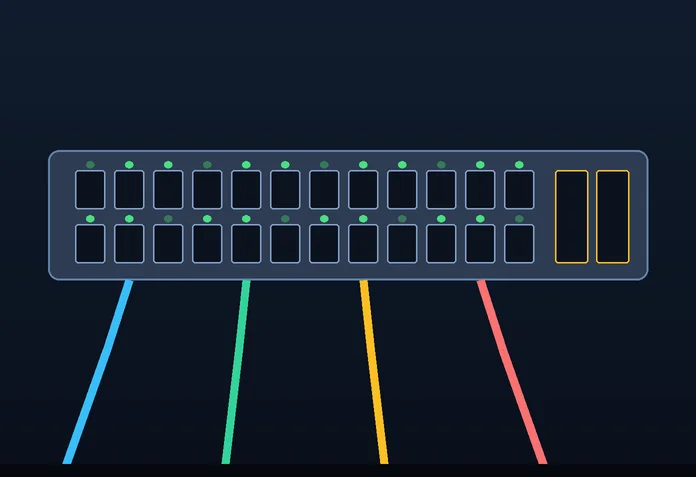
The switch is the quiet box at the center of the office network: every desk, phone, camera and access point plugs into it, and it decides, thousands of times a second, where each packet goes next. Get it right and nobody ever thinks about it. Get it wrong and the symptoms are vague and expensive, calls that crackle, a Wi-Fi system starved by its own uplink, a network that cannot grow without a rip out. Switches range from a twenty dollar unmanaged box to managed hardware costing fifty times as much, and the difference is not speed, it is control. This guide explains the types of network switches in plain terms, what the management and speed labels really mean, and how to size one for a small office.
In short: types of network switches
Network switches come in four practical types. Unmanaged switches just forward traffic and cannot be configured at all. Smart switches add a simple web interface for the essentials, VLANs, port settings and basic monitoring. Fully managed Layer 2 switches give complete control and diagnostics, and Layer 3 switches add routing between networks on the switch itself. Any of them can also be a PoE switch, sending power down the cable to phones, cameras and access points. For a small office the sweet spot is usually one managed or smart PoE switch with gigabit ports, a power budget sized to the devices it feeds, a couple of faster uplink ports, and about a quarter of its ports left empty for growth.
What a switch actually does
A switch connects the wired devices in a building and forwards data between them intelligently: it learns which device sits on which port and sends each packet only where it is going. That sounds basic, and it is why the older hub, which repeated everything to everyone, disappeared decades ago. A switch is not a router. The router is the border guard between your network and the internet, handing out addresses and controlling what crosses; the switch is the internal postal service, and a building usually has one router and as many switches as its cabling needs. Nor is a switch the same as the wireless access point it often powers: the access point is a radio bridge onto the wired network the switch runs. Everything in this guide is about choosing that wired core well, and it assumes the cabling beneath it is sound, which is its own subject, covered in our guide to the types of network cables an office runs on.
The main types of network switches
Unmanaged switches
An unmanaged switch has no settings, no interface and no opinions. Plug in power and cables and it forwards traffic at full speed until it dies, which is often many years later. For a handful of devices in one room, a home office or a single extra cluster of desks, that is entirely respectable. Its limits appear the moment something needs separating or diagnosing: you cannot isolate the guest Wi-Fi, prioritize the phones, see which port is erroring, or control anything remotely. Unmanaged is a fine answer for a network small enough to see all of from your chair.
Smart switches
Smart switches, also sold as web managed or managed lite, add a browser interface and the handful of features offices actually use: VLANs to separate traffic, port mirroring and error counters for basic troubleshooting, link aggregation, and simple quality of service. They cost modestly more than unmanaged and far less than full enterprise gear. For many small offices this is the correct tier, and the honest limitation is depth: limited logging, limited automation, and management features that stop where an IT department’s begin.
Fully managed Layer 2 switches
A fully managed switch exposes everything: a command line and web interface, detailed statistics per port, spanning tree and loop protection, access control lists, authentication of devices as they plug in, remote management and configuration backup. Layer 2 refers to what it switches by, the hardware address of each device, within a network. These are the switches in offices with an IT person or a support company, in buildings running serious voice and camera systems, and anywhere an outage needs a diagnosis rather than a shrug. The price premium over smart switches buys visibility and control, and it is wasted if nobody will ever log in.
Layer 3 switches
A Layer 3 switch adds routing: it can pass traffic between your separate internal networks, office, voice, cameras, guest, at wire speed, work that would otherwise fall to the router and bottleneck there. In a small office with one flat network, that capability is unnecessary. In a larger or segmented one, a Layer 3 switch in the core keeps internal traffic fast and leaves the router to handle the internet edge. Many managed switches offer limited Layer 3 features, static routes and basic inter VLAN routing, which is often the pragmatic middle.
PoE switches
Power over Ethernet is not a separate species so much as a feature that cuts across all the types above: the switch sends DC power down the same cable as the data, under the IEEE 802.3 standards, 802.3af at up to 15.4 watts a port, 802.3at at up to 30 watts, and 802.3bt at up to 60 or 90 watts. Phones, cameras, access points and door controllers all feed this way, with no electrician and no power brick. The specification that catches buyers out is the total PoE budget: a 24 port switch may offer PoE on every port but only 250 watts in total, enough for phones, not enough for a full load of hungry cameras and access points. Do the arithmetic per device before you buy, and leave headroom.
Stackable and modular switches
Stackable switches link together and present themselves as one larger switch, one management address, one configuration, which is how offices grow from 24 ports to 96 without redesigning. Modular switches, a chassis with swappable line cards, belong to data centers and large campuses. A small office will meet stacking first, and it is worth checking whether a model supports it if you expect to outgrow one unit.
| Type | Configuration | VLANs | Routing | Typical home |
|---|---|---|---|---|
| Unmanaged | None | No | No | Home office, tiny teams, one room |
| Smart | Web interface, essentials | Yes | No | Small offices separating voice, guests and data |
| Managed Layer 2 | Full web and command line | Yes, advanced | No | Offices with IT support, voice and camera estates |
| Layer 3 | Full, plus routing | Yes | Yes, between internal networks | Larger or segmented offices, network core |
Port speeds: gigabit, multi gig and uplinks
Desktop ports are a settled question: gigabit to the desk is the standard, fast Ethernet (100 Mbps) survives only in the very cheapest gear and should be avoided, since it can silently cap a modern PC or dock. The live questions are the uplinks and a handful of fast ports. Multi gig ports at 2.5 Gbps have become the natural feed for Wi-Fi 6E and Wi-Fi 7 access points, whose radios can offer more than a gigabit in aggregate and are wasted behind a gigabit uplink. Ten gigabit appears as uplink ports, often as SFP+ slots that take fiber or copper modules, linking switches together and connecting servers and storage. A sensible small office design is gigabit everywhere, two or four multi gig ports for access points, and 10 gigabit uplinks between switches or to a server. Chasing 10 gigabit to every desk buys heat, noise and cost for workloads almost no office has.
A plain word on switching capacity
Spec sheets quote a switching capacity or fabric figure in gigabits per second, and buyers worry about it more than they need to. The arithmetic is simple: a switch is called non blocking when its fabric can handle every port talking at full speed in both directions at once, which for a 24 port gigabit switch means 48 Gbps. Any reputable gigabit switch hits that mark, so capacity is rarely the deciding factor at office scale. What decides real performance is usually elsewhere: the speed of the one uplink everyone shares, the PoE budget, and whether the cabling underneath is up to the standard the ports assume. Spend your attention, and your money, in that order.
Choosing a switch for a small office
Count the ports, then add the growth. List every wired thing: computers and docks, printers, phones, access points, cameras, door access, the router uplink, and any link to a second switch. Buy for that number plus roughly a quarter spare. A full switch is a small crisis; empty ports are cheap insurance. Standard sizes are 8, 16, 24 and 48 ports.
Size the PoE budget in watts, not ports. Add up the draw: a desk phone at 5 to 10 watts, an access point at 15 to 25, a fixed camera at 8 to 15, a pan tilt zoom camera at 25 to 60. Buy a budget above that total with room to add devices, and confirm whether all ports can deliver simultaneously at the wattage your hungriest device needs.
Decide whether you need VLANs before you decide the tier. If the office runs guest Wi-Fi, voice phones or cameras that should be separated from the computers, and most should, you need at least a smart switch. If the answer involves multiple sites, authentication or a support company managing it remotely, step up to fully managed. The network design questions behind that segmentation are covered in our guide to the types of networks offices run.
Mind the noise and the rack. Fans in enterprise switches are loud enough to banish the box from open plan space; fanless and quiet models exist up to 24 ports and belong in small offices without a comms room. If the switch will live in a rack, buy the rackmount ears and the depth that fits, and if it will link to another cabinet, check whether you need SFP or SFP+ slots for fiber rather than discovering it at installation.
Form factors: desktop, rackmount, fanless and industrial
The same switching features come in very different boxes, and the box matters more than buyers expect. Desktop switches are the small plastic or metal units that live under a desk or on a shelf, fine for a workgroup and wrong for a cabinet full of structured cabling. Rackmount switches are built to bolt into the standard 19 inch rack alongside the patch panel, with ports at the front and, on better models, power supplies and cable management designed for a tidy install. Fanless models use the case itself as a heatsink and are silent, which suits open plan offices and small wall cabinets, but passive cooling caps how much PoE power and port density they can offer. At the other extreme, industrial switches are hardened for warehouses, plant rooms and outdoor cabinets, with wide temperature ranges, DIN rail mounting and tolerance of vibration and dust. Match the box to the environment honestly: an office switch in a hot, dusty cabinet dies young, and an industrial switch on a desk is money spent on armor it will never need.
Reliability and security features worth paying for
Once the type, ports and power are settled, a handful of features separate a switch that protects the network from one that merely feeds it. Loop protection, through spanning tree and its rapid variant, stops the classic office accident, someone plugging a cable into two wall ports, from taking the whole network down in a broadcast storm. Port security and 802.1X authentication let the switch check what is plugging in, which matters when wall ports sit in public or shared areas. DHCP snooping and similar guards stop a rogue device, often an employee’s home router plugged in backwards, from handing out addresses and quietly breaking everything. On the reliability side, look for a metal case, a reputable power supply, a warranty measured in years rather than months, and firmware that the vendor still maintains. None of these features appears in the speed ratings, and all of them appear in the support history of networks that stay up.
Buying mistakes that cause the support calls
- PoE budget too small. The switch has the ports, the devices reboot in rotation because the budget cannot feed them all. This is the single most common switch complaint and it is entirely predictable with ten minutes of arithmetic.
- An unmanaged switch in a managed job. The moment you need to separate guests, prioritize calls or find a faulty port, an unmanaged network goes opaque. The saving over a smart switch is small and the retrofit is total.
- No spare ports. Growth arrives one device at a time and a full switch turns each arrival into a project. Buy the headroom at the start.
- Gigabit uplinks between busy switches. Twenty heavy users behind a single gigabit link to the server is a bottleneck with a blinking light. Uplinks are where speed money belongs first.
- Ignoring firmware and support. A switch is a computer with a ten year life. Buy a line the vendor still updates, register it, and keep its configuration backed up somewhere that is not the switch itself.
Sources used for this article
- IEEE 802.3 Ethernet Working Group: the Ethernet standards referenced in this guide, including the Power over Ethernet amendments 802.3af, 802.3at and 802.3bt and their per port power levels, and the multi gig and 10 gigabit Ethernet standards behind the port speed discussion.
- Telecommunications Industry Association, TIA-568 cabling standards: the structured cabling context the switch connects to, including channel distances and the separation of horizontal cabling, patch panels and active equipment.
Frequently asked questions
What is the difference between a managed and an unmanaged switch?
Control. An unmanaged switch has no settings at all: it forwards traffic and nothing can be changed, separated or monitored. A managed switch can be configured and observed: you can split it into separate virtual networks (VLANs), prioritize voice traffic, control which devices may connect, and see errors and traffic per port when something goes wrong. Smart switches sit between the two, offering the essential controls through a simple web interface. Small offices usually belong on smart or managed; unmanaged suits a handful of devices in one room.
What is the difference between a Layer 2 and a Layer 3 switch?
A Layer 2 switch forwards traffic within a network using devices’ hardware addresses. A Layer 3 switch can also route traffic between different internal networks, for example between the office, voice and guest networks, at full wire speed, work that otherwise loads the router. Most small offices with a single flat network need only Layer 2. Layer 3 earns its cost in larger or segmented networks where internal traffic between networks is heavy.
How many ports does a small office switch need?
Count every wired device: computers and docks, printers, phones, wireless access points, cameras, door access, the router connection and any link to a second switch. Then add about a quarter as spare capacity for growth and failures. A typical small office lands on a 24 port switch, or a 48 where phones and computers each take a port. Running out of ports is one of the commonest and most avoidable network problems, and spare ports bought today are far cheaper than a second switch fitted in a hurry.
How much PoE power does my switch need?
Add up the devices it will power. Desk phones draw roughly 5 to 10 watts each, wireless access points 15 to 25, fixed cameras 8 to 15, and pan tilt zoom cameras 25 to 60. Your switch’s total PoE budget, in watts, must exceed that sum with headroom to spare, and its per port limit must cover the hungriest single device: up to 30 watts under 802.3at, and 60 to 90 under 802.3bt. A switch can have PoE on every port and still not have the budget to power them all at once.
Is a gigabit switch fast enough for an office?
For desk ports, yes, comfortably, and gigabit remains the standard connection for office computers. Where gigabit can pinch is on the links that aggregate everyone’s traffic: the uplink between switches, the feed to a server, and the port behind a modern Wi-Fi 6E or Wi-Fi 7 access point. That is why well designed small office switches pair gigabit desk ports with a few 2.5 gigabit ports and 10 gigabit uplinks, rather than paying for top speed everywhere.
Do I still need a router if I have a switch?
Yes. The two do different jobs. The router connects your office network to the internet, assigns addresses, and enforces the boundary between your network and the outside world. The switch connects devices to each other inside the building and cannot do the router’s job, even in its Layer 3 form, which routes between internal networks only. Almost every office has exactly one router and as many switches as its cabling requires.
