



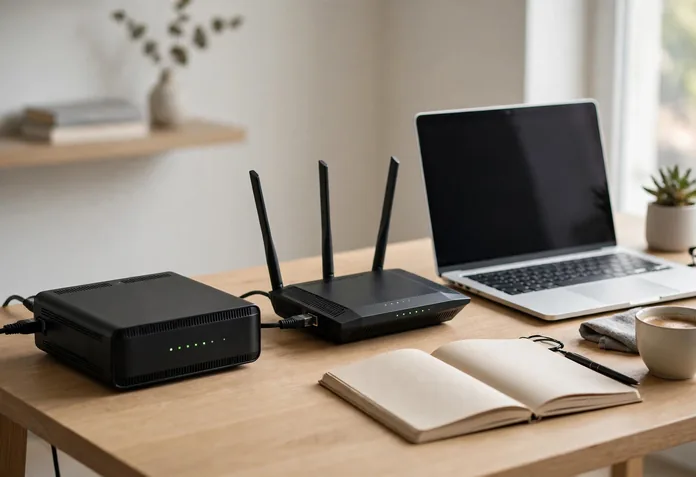
Choosing a modem sounds like a ten minute errand, right up until the box arrives and your provider refuses to activate it, or the new hardware delivers the same speeds as the old because the bottleneck was somewhere else. For a home office or a small business, the modem is the front door of the whole operation: video calls, card payments, cloud backups and customer Wi-Fi all pass through it, and a bad choice costs money twice.
The good news is that modem shopping is mostly elimination. Your connection type narrows the field, your provider’s approved list narrows it further, and your plan speed settles the rest. If you want the background first, our guide to the types of modems and how they work explains the technology in depth. This guide covers the buying decision itself: which box, which standard, and whether buying beats renting.
In short: To choose a modem, first confirm your connection type (cable, DSL or fiber), then pick a modem from your provider’s approved list that is certified for at least one speed tier above your plan. On cable, that means DOCSIS 3.1 for almost every new purchase. Buy rather than rent if your provider charges a monthly equipment fee, because a typical modem pays for itself in about a year. Fiber customers usually cannot choose a modem at all, since the provider’s optical terminal does that job.
Modem, Router or Gateway: Which Box Do You Actually Need?
Three different devices hide behind the word “modem” in most shops, and picking the wrong format is the most common buying mistake of all. A standalone modem does one job: it translates the signal on your provider’s line into a standard network connection. It has no Wi-Fi and usually just one Ethernet port. Everything else in your office connects through a second device, the router. If you are fuzzy on the basics, our explainer on what a modem is and what it does covers the fundamentals before you spend anything.
A router creates your local network. It hands out addresses to laptops, printers and phones, runs the firewall, and broadcasts Wi-Fi. A router cannot talk to the internet line on its own; it needs a modem in front of it. A gateway, sometimes called a modem router combo, merges both jobs into one box. Combos are tidy and are what most providers rent out, but the convenience has a price: the two halves age at different speeds. Wi-Fi standards move fast, modem standards move slowly, and a combo forces you to replace both when only one is outdated.
Which setup fits a small office?
For a single room home office, a gateway from the provider is honestly fine, and simplicity has real value when you are also the IT department. For anything larger, a separate modem and router is the better buy. It lets you place the router, or a mesh Wi-Fi system, where the signal is needed rather than where the cable line happens to enter the building. It also means a failed router is a cheap, quick swap that leaves your internet account and modem untouched. Most of the advice in the rest of this guide assumes separates, because that is where your choices actually multiply.
Step 1: Start With Your Connection Type and ISP Compatibility
No modem works everywhere. Each connection technology speaks a different language, and a modem built for one is dead weight on another. Worse, most providers will only activate models on their own approved list, tested for your exact speed tier. So step one is not shopping at all. It is reading your bill or your provider’s app and answering two questions: what technology delivers my internet, and which modems does my provider approve for my plan?
Cable internet: the DOCSIS world
If your internet arrives over a coaxial cable, the modem you need follows the DOCSIS standard, the specification written by CableLabs, the cable industry’s research body. Cable is the one connection type where buying your own modem is a well-trodden path: the big cable providers publish approved device lists, and activation usually takes minutes through an app. The rest of this guide spends most of its time here, because cable is where the real choices, and the real savings, are.
DSL: check the variant before anything else
DSL runs over telephone lines and comes in flavours such as ADSL and VDSL, which need different modem capabilities. Providers are stricter here, lists of approved third party DSL modems are shorter, and many DSL services are sold with a provider gateway that also handles a phone line. If you are on DSL, confirm the exact variant on your plan and ask the provider which retail modems they will activate. In many DSL areas the honest answer is that renting, or accepting the included gateway, is the pragmatic choice.
Fiber: the modem choice usually does not exist
Fiber connections end at an optical network terminal, or ONT, a box the provider installs and owns. The ONT does the modem’s job, converting light signals into a network connection, and providers almost never let customers substitute their own. So on fiber there is no modem to choose; your buying decision moves one step downstream, to the router you plug into the ONT. That is one more reason fiber is attractive for a growing office, as our look at the benefits of fiber optic internet explains. If fiber is available at your address, spend your research time on routers and mesh systems instead of modems.
DOCSIS 3.0 vs DOCSIS 3.1, Explained Plainly
Cable modems are sold by their DOCSIS version and a pair of numbers such as 32×8, and this is where most buyers get lost. DOCSIS 3.0, the older standard, sends data by bonding together multiple narrow channels, each about 6 MHz wide. The numbers tell you how many: 32×8 means 32 download channels and 8 upload channels. More channels means more capacity, so a 32×8 modem sits far above an old 8×4 model even though both say DOCSIS 3.0 on the box. Under the specification, DOCSIS 3.0 tops out at roughly 1 Gbps down and 200 Mbps up, and real provider ratings land well below that: a 16 channel modem may be rated for plans of only a few hundred megabits.
DOCSIS 3.1 changed the method. Instead of many narrow channels, it can use wide OFDM blocks, up to 192 MHz across, which carry far more data and cope better with interference. CableLabs puts the DOCSIS 3.1 ceiling at up to 10 Gbps down and 1 to 2 Gbps up, and it is the standard behind the gigabit plans cable companies now sell by default. DOCSIS 3.1 also adds low latency features that keep video calls and remote desktops responsive when the connection is busy, something a small office feels every day.
So which one do you need?
For a new purchase, DOCSIS 3.1 is the safe answer for almost everyone, and on gigabit plans it is not optional: providers require it. The provider landscape explains why. Several large cable companies have stopped activating DOCSIS 3.0 modems on their faster tiers, and some have retired older 3.0 models from their approved lists entirely, as current DOCSIS buying guidance tracking provider rules shows. A DOCSIS 3.0 modem you already own can keep working on a modest plan if your provider still lists it, but buying one new in 2026 means buying into a standard with a shrinking support window. A newer DOCSIS 4.0 standard exists for multi gigabit services, but unless your provider sells a 4.0 plan at your address, it is money spent on capacity you cannot use yet.
Match the Modem to Your Plan Speed, With Headroom
A modem never delivers more than your plan allows, and a plan never delivers more than your modem can handle. The two numbers have to line up, with the modem’s rating comfortably above the plan you pay for. Providers make this easy if you let them: their approved lists rate every model against speed tiers, so the check takes two minutes. Find your plan’s download and upload speeds, then pick a modem the provider rates for at least one tier higher. That headroom covers the quiet speed bumps providers roll out, and it means a plan upgrade next year does not force another hardware purchase.
As a rough map for cable: plans up to about 300 Mbps are served by almost any current modem; plans between 300 and 600 Mbps want DOCSIS 3.1 or a top end 32×8 DOCSIS 3.0 model where it is still approved; gigabit plans need DOCSIS 3.1, full stop. Above a gigabit, look for a modem with a 2.5 gigabit Ethernet port, because the older 1 gigabit port physically caps a wired connection at roughly 940 Mbps no matter what the box promises. Upload speed deserves a glance too. Cable uploads run far below downloads, and if your office lives on video calls and cloud backups, check the modem is approved for the fastest upload tier your provider offers in your area, not just the fastest download.
Buy or Rent? The Honest Cost Math
Renting the provider’s gateway is the default, and defaults are expensive. Where a rental fee applies, it is commonly in the region of $10 to $15 a month; Xfinity pricing breakdowns, for example, put its gateway rental at about $15 a month, roughly $180 a year, every year, for hardware you never own. Some newer plans bundle the gateway at no extra charge, so the first step is always to read your own bill and find the equipment line. If there is no fee, the financial case for buying mostly disappears.
Where a fee does apply, the arithmetic is simple. A solid standalone DOCSIS 3.1 modem typically costs roughly $100 to $200 (all figures here are approximate and vary by brand and port speed). Against a $15 monthly rental, a $150 modem pays for itself in about ten months. Over a five year working life, renting costs roughly $900 while buying costs the purchase price once, saving in the region of $750. There are exceptions. Spectrum’s approved modem list exists alongside a different model: Spectrum includes a modem at no additional charge and charges instead for its optional Wi-Fi router service, so there the saving from buying your own modem is small and the real decision is about the router.
When renting still wins
Buying is not always right. Rent if your plan bundles a phone service that needs the provider’s voice gateway, because retail modems do not support it. Rent if you expect to move premises or switch technology, say to fiber, within a year. And rent if the connection is mission critical and you want the provider to own every fault: with rented kit, a dead box is their problem and usually a free replacement. The moment the monthly fee stretches past a year or two with no plan to move, buying pulls ahead.
Ports, Routers and Mesh: Planning the Rest of the Setup
A standalone modem is only the front door, so plan the hallway before you buy it. Most modems offer a single Ethernet port, and that is fine, because everything else hangs off your router. The port’s speed matters more than its count: 1 gigabit Ethernet suits plans up to a gigabit, while anything faster needs 2.5 gigabit on both the modem and the router, or the faster plan is wasted on wired devices. Ignore extra ports and link aggregation claims; on modern modems they add cost without adding usefulness for a small office.
Your router choice decides the daily experience. A single good router covers a small flat office; thick walls, two floors or a shop floor call for a mesh system, where two or three nodes spread Wi-Fi evenly and can be expanded later. This is the strongest practical argument for separates over a gateway: the modem can sit by the cable entry for years while the Wi-Fi side grows with the business. If you do end up with a provider gateway and your own router, put the gateway into bridge mode so only one device is routing; two routers stacked together cause the classic double NAT problems that break remote access and some payment terminals. When you are ready to compare hardware, our roundup of the best modems and routers for business use collects the current picks in one place.
Security and Firmware: The Part Most Buyers Skip
A modem and router are computers that sit at the edge of your business network, and they need the same basic hygiene as any other machine. On the modem side, one fact surprises people: you cannot update a cable modem’s firmware yourself. The provider pushes firmware to approved models from their side, which is another reason to buy a model the provider actively supports rather than an obscure import. An unsupported or retired modem stops receiving those updates quietly, and quietly is the problem.
The router is yours to secure. Change the factory admin password on day one, turn on automatic firmware updates where offered, and use WPA3 or at least WPA2 security on the Wi-Fi with a strong passphrase. Set up a separate guest network for customers and smart devices such as card readers and cameras, so a compromised gadget cannot wander across to the machine holding your accounts. Turn off remote management from the internet unless you genuinely use it. None of this needs specialist kit; it needs ten deliberate minutes during setup rather than after an incident.
The Step-by-Step Buying Checklist
- Find your connection type (cable, DSL or fiber) and your plan’s download and upload speeds on your bill or provider app.
- Open your provider’s approved modem list and filter it to your speed tier. Anything not on that list is not a candidate, however cheap.
- On cable, choose DOCSIS 3.1. On DSL, confirm the exact variant your plan uses. On fiber, skip the modem and shop for a router instead.
- Pick a model rated at least one tier above your current plan, and check the Ethernet port: 2.5 gigabit for plans above a gigabit.
- If your plan includes the provider’s phone service, ask about voice support before buying; retail modems will not run it.
- Decide on separates or a combo, and line up the router or mesh system the modem will feed.
- Do the rental math on your own bill. If the payback period is under about eighteen months, buying is the better deal.
- Buy from a retailer with an easy returns window, and keep the receipt until the modem is activated and stable.
- Activate through the provider’s app or support line with the MAC address from the modem’s label, then run a speed test wired and over Wi-Fi.
- Return the rented equipment in person, get a receipt, and check the next bill to confirm the rental charge has stopped.
Common Mistakes That Waste Money
Buying a modem your provider does not support. The single most expensive mistake, because an unapproved modem cannot be activated at all. The approved list is the whole game; check the exact model, not just the brand, since approval is granted model by model and tier by tier. Our full breakdown of modem types can help you decode the naming before you check the list.
Paying for speed your plan cannot use. A modem rated for 2 Gbps adds nothing to a 300 Mbps plan except cost. The reverse error is just as common: a bargain modem rated below your plan quietly caps every device in the office. Buy for the plan you have, plus one tier of headroom, and stop there.
Choosing a combo you cannot upgrade. A gateway locks your Wi-Fi and modem lifecycles together. When Wi-Fi standards move on, and they move faster than modem standards, you replace a working modem along with the outdated router, or live with aging Wi-Fi to protect a working modem.
Forgetting the rental runs until the box goes back. Providers keep billing the equipment fee until the rented unit is physically returned and scanned in, even if your own modem is already live. Return it promptly, in person where you can, and keep the receipt until a clean bill confirms the charge has ended.
When to Ask Your Provider for a Business-Grade Install Instead
Sometimes the right answer is not a retail modem at all. Business internet services often require, or strongly favour, provider installed equipment, and they bundle things a home office package does not: static IP addresses for remote access and security systems, service level agreements with defined repair times, and priority support lines. If your business takes card payments all day, runs a phone system over the connection, hosts anything customers connect to, or would lose serious money in a day long outage, price a business plan before buying hardware. The equipment may be non-negotiable, but the repair guarantee is the product you are actually buying.
The same logic applies to multi room or multi floor premises where the provider will survey and wire access points as part of the install. Retail gear still wins for the straightforward cases: one site, a standard plan, a rental fee worth escaping, and someone in the business comfortable plugging in a router. Choose the modem yourself when the setup is simple; hand it to the provider when downtime is the expensive part.
Frequently Asked Questions
Do I need both a modem and a router?
Usually, yes. The modem connects your building to your provider’s network, and the router shares that connection with your computers and phones, wired and over Wi-Fi. A gateway combines both jobs in one box. If you buy a standalone modem, you must pair it with a router or a mesh Wi-Fi system, because a modem alone gives you just one wired connection and no Wi-Fi at all.
Is DOCSIS 3.1 worth it if my plan is under 500 Mbps?
For a new purchase, yes. A DOCSIS 3.1 modem works fine on slower plans, costs only a little more than older stock, and stays on providers’ approved lists far longer. Many providers have stopped activating DOCSIS 3.0 modems on faster tiers, so a 3.1 modem also protects you if you upgrade your plan later. Keeping a DOCSIS 3.0 modem you already own is reasonable; buying one new is not.
Will any cable modem work with my internet provider?
No. Providers activate only the models on their approved list, and approval is tied to your speed tier as well as the model. A modem that works on one cable network may be refused on another, or accepted but capped below your plan’s speed. Always check the exact model against your provider’s current approved device list for your plan before you buy.
How much do I save by buying a modem instead of renting?
It depends on your provider’s fee. Where a gateway rental runs about $15 a month (figures approximate), that is roughly $180 a year. A typical DOCSIS 3.1 modem costing around $150 therefore pays for itself in about ten months, then saves the full rental every year after. Some providers include the modem at no extra charge, in which case buying saves nothing on the modem itself.
Can I choose my own modem on a fiber connection?
Almost never. Fiber service ends at an optical network terminal (ONT) that the provider installs and owns, and it does the modem’s job. You cannot substitute your own ONT. What you can choose is the router or mesh system that plugs into it, and that choice has the bigger effect on Wi-Fi coverage and speed around your office anyway.
How long should a cable modem last?
Plan on roughly four to six years of useful life. The hardware rarely fails first; what ends a modem’s career is the provider retiring its DOCSIS version or dropping the model from the approved list. Buying the current standard, DOCSIS 3.1 today, and a model rated a tier above your plan gives you the longest realistic run before that happens.
