



Originally published: June 20, 2023. Last updated: Oct 15, 2026.
Laser printers are the workhorses of most offices: fast, economical per page, and built for volume. But when one misbehaves, the symptoms can be cryptic, from ghosted images to error codes that read like riddles. This guide covers the nine laser printer problems offices encounter most, with each one broken into symptom, likely cause, and fix, plus a cost signal so you know when to repair and when to replace. Laser printing works by fusing toner onto paper with heat and pressure, which is why many of these problems trace back to the toner cartridge, the drum, or the fuser.
For general printer problems that are not laser-specific, see the printer troubleshooting Q and A and the guide to fixing blank-page printing. If the machine is done, the roundups of the best color laser all-in-ones and the best printers for small businesses list current replacements.
How a Laser Printer Works (in 30 Seconds)
Understanding the process makes troubleshooting far easier. A laser printer charges a rotating drum, draws your page on it with a laser, picks up toner where the image sits, transfers the toner to paper, and fuses it permanently with heat. Canon’s laser printer technology explainer walks through the same cycle with diagrams. Four parts do most of the work: the toner cartridge, the drum unit, the fuser, and the paper path. Nearly every problem below is one of these four wearing out, running empty, or getting dirty.
9 Common Laser Printer Problems and Solutions
1. Paper Jams
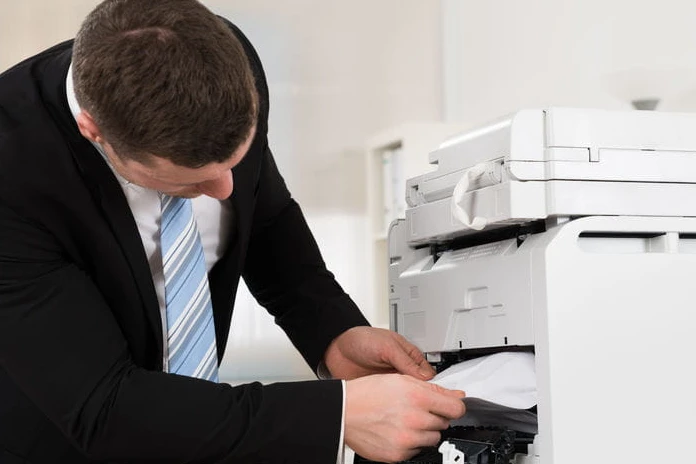
Symptom: The printer stops mid-job and reports a jam. Likely cause: Overfilled trays, damp or curled paper, or debris in the paper path. Fix: Power off, open all access panels, and remove paper slowly along the direction of travel. Fan the stack, load only to the fill line, seat the paper guides snugly, and store paper flat in a dry room. Cost signal: Free to fix yourself. If jams recur in the same spot after correct loading, worn pickup rollers are the cause; a roller kit is inexpensive, but a service call to fit it may not be.
2. Poor Print Quality: Streaks, Spots, and Lines
Symptom: Repeating marks, vertical lines, or random spots on every page. Likely cause: A damaged drum (repeating marks at regular intervals), a leaking toner cartridge (random spots), or debris on the corona wire. Fix: Print a few blank pages to see if the marks repeat at fixed intervals, which points to the drum. Replace a leaking toner cartridge immediately, since spilled toner spreads. Clean the corona wire with the built-in slider if your model has one. Cost signal: A drum unit typically costs a fraction of a new printer and is user-replaceable; do that before considering replacement.
3. Slow Printing
Symptom: Pages take far longer than the rated speed. Likely cause: High-quality or duplex settings, an overloaded network queue, or an outdated driver. Fix: Drop the quality setting to normal for everyday documents, since best-quality mode can multiply print time. Check for a stuck job blocking the queue. Update to the manufacturer’s current driver rather than a generic OS driver. On shared office printers, a wired Ethernet connection beats Wi-Fi for consistent speed. Cost signal: Always free. If the printer is simply undersized for the office’s volume, compare its rated pages-per-minute against actual demand before blaming the machine.
4. Connectivity Problems
Symptom: The computer cannot find the printer on the network. Likely cause: IP address changes, firewall blocking, or the printer joining the wrong Wi-Fi network. Fix: Restart the printer, router, and computer in that order. Confirm the printer’s IP address on its display panel and check it matches what the driver expects; assigning the printer a static or reserved IP prevents this permanently. HP’s support guide walks through temporarily testing with firewall software disabled to isolate blocking issues. Cost signal: Free. For a shared office printer, run Ethernet: it eliminates wireless connectivity as a failure mode entirely.
5. Printer Not Responding
Symptom: Jobs go to the queue and nothing happens, with no error shown. Likely cause: A stalled spooler, the printer paused in software, or a communication breakdown after a sleep cycle. Fix: Check the print queue for a paused state and resume it. Restart the print spooler service and clear all jobs. Power-cycle the printer fully (unplug for thirty seconds, not just the power button) to clear a hung state. Disable aggressive sleep settings on shared printers that fail to wake. Cost signal: Free. If one printer hangs weekly while others are fine, its firmware or network card is suspect.
6. Error Messages and Codes
Symptom: The display shows a code like “49” or “79” with no plain explanation. Likely cause: Varies by code: fuser errors, formatter faults, or corrupt jobs. Fix: Write down the exact code, then look it up in the user manual or the manufacturer’s support site for your exact model; generic web searches for error codes often mislead. As a first step, power-cycle and try printing an internal test page: if the test page prints, a corrupt document caused the error. Cost signal: Fuser and formatter errors on out-of-warranty printers are the classic replace-don’t-repair cases; get a quote before authorizing anything.
7. Faded or Light Prints
Symptom: Pages come out pale or washed out. Likely cause: Low toner, economy mode enabled, or a worn drum. Fix: Check toner levels and rock the cartridge gently to redistribute remaining toner as a diagnostic. Turn off toner-save or economy mode in the driver. Increase print density one step. Clean the printer’s optical path, including the laser lens area, per the manual. Cost signal: A toner cartridge is routine consumable spending. If a new cartridge does not fix fading, the drum is next; price both before deciding.
8. Ghosting: Faint Repeats of Images
Symptom: A faint copy of text or graphics reappears further down the page. Likely cause: A worn drum that cannot fully discharge between rotations, or a fuser running at the wrong temperature. Fix: Inspect the drum for visible wear and replace it if it is near its rated page life. Let the printer warm up fully before large jobs, and check that the paper type setting matches the loaded paper, since wrong temperature profiles cause ghosting. Cost signal: Drum replacement is the fix in most cases and is far cheaper than a new printer.
9. Toner Smudges and Streaks
Symptom: Toner rubs off the page or leaves black streaks. Likely cause: A leaking cartridge, a failing fuser that is not heating enough, or damp paper. Fix: Do the smudge test: if toner wipes off with a finger, the fuser is not fusing properly. Replace leaking cartridges at once. Use dry, room-temperature paper stored flat. Clean the paper path of spilled toner with a dry cloth (never a damp one inside a laser printer). Cost signal: Fuser replacement is one of the pricier repairs; on an older printer, compare the quote against a new machine.
Office Laser Printer Hygiene
Most of these problems arrive less often with simple habits. Update firmware twice a year; manufacturers fix real bugs in firmware updates. Use the manufacturer’s driver, not the operating system’s generic one. Store paper sealed and flat, and load trays correctly. Vacuum or wipe the paper path during toner changes. And treat office printers as network devices: change default admin passwords and keep them on the office network, not the guest Wi-Fi. For choosing the right machine in the first place, the multifunction printer types guide explains which designs suit which workloads.
When to Repair vs Replace a Laser Printer
Apply the half-price rule: if the repair quote exceeds half the cost of an equivalent new printer, replace it. Consumables (toner, drums, roller kits) are almost always worth replacing. Major assemblies (fuser, formatter board, laser scanner) on out-of-warranty machines usually are not. Also replace when the printer no longer receives firmware or driver updates, since an unpatched network printer is a security liability. A printer that has served five or more years in a busy office has usually earned retirement.
Frequently Asked Questions
How often should I clean my laser printer?
Clean the paper path and exterior every few months, and clean the corona wire and optical components whenever print quality drops. A deeper clean during each toner change is a good habit for busy offices.
Why is my laser printer producing blank pages?
Usually an empty or unseated toner cartridge, a spent drum, or sealing tape left on a new cartridge. Rock the toner cartridge to redistribute toner as a quick diagnostic; if pages print afterward, replace the toner. The blank-page guide covers the full checklist.
Can I use any paper type in a laser printer?
Lasers handle most office papers, but always match the driver paper-type setting to what is loaded, and avoid inkjet-only glossy or photo papers, which can melt in the fuser and damage the printer. Store paper dry and flat.
Why does the printer still say low toner after I replaced the cartridge?
The printer may need a reset to recognize the new cartridge, the replacement may be a non-genuine cartridge the printer cannot read, or you replaced the wrong cartridge in a multi-cartridge machine. Reseat the cartridge and check the manual for a toner reset procedure.
How long should a laser printer drum last?
Drum units are typically rated for 12,000 to 30,000 pages depending on the model. Ghosting, repeating marks, and fading that survive a toner change are the classic signs a drum has reached the end of its life.
Is it safe to vacuum toner spills?
Use only a toner-rated vacuum with proper filtration; standard vacuums can blow fine toner dust through their exhaust or, in rare cases, create static risks. For small spills, a dry cloth and careful wiping is the safer option.
